Elden Ring GPU Wattage Optimization Guide
Elden Ring low GPU wattage and performance issues on PC can be fixed by adjusting settings for higher GPU usage, power draw, and smoother gameplay.
If you've been playing Elden Ring on PC and noticed your GPU barely pulling power, you're definitely not the only one. A lot of players with strong graphics cards end up seeing oddly low wattage, and in most cases, that has less to do with faulty hardware and more to do with how the game is built. Elden Ring was designed with console-style limits in mind, so the 60 FPS cap, fairly conservative defaults, and a surprisingly CPU-heavy engine all work together to keep your GPU from stretching its legs. Even with the latest 2026 patches, that basic behavior really hasn't changed much, which is why system tweaks and driver settings still matter if you want better GPU usage, higher wattage, and more consistent performance.
How to Increase GPU Wattage in Elden Ring Fast
Low GPU wattage in Elden Ring usually doesn't mean anything is wrong with the card itself. More often, it just means the GPU isn't being asked to do enough work. With the built-in 60 FPS cap active, even a mid-range GPU can finish frames early and sit around waiting, while high-end cards can end up cruising at just 40–60% utilization.
Before you start changing settings, it helps to figure out whether you're GPU-bound or CPU-bound. If your CPU is pinned near 100% and your GPU is sitting low, then the processor is the real bottleneck. Elden Ring leans hard on single-core CPU performance because of world logic, AI behavior, and asset streaming, so this happens more often than you'd expect. If the frame cap is the main issue, though, removing it will usually raise GPU load and wattage right away.
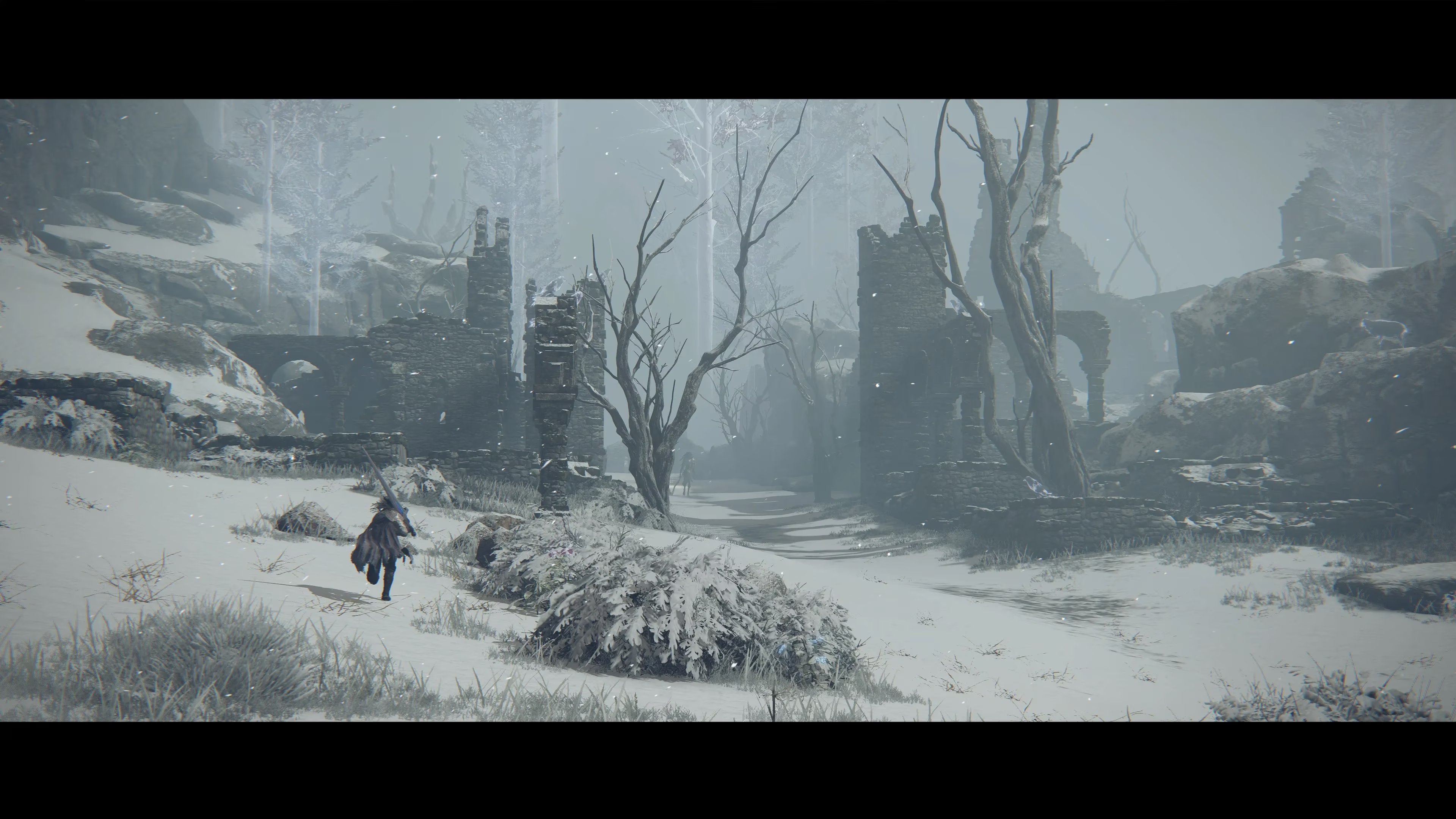
Here’s the fast checklist that covers the biggest fixes first:
| Quick-Fix Action | Impact on GPU Wattage |
|---|---|
| Remove or raise the 60 FPS cap | High — directly forces sustained GPU load |
| Set Windows power plan to High Performance | High — prevents CPU/GPU clock throttling |
| Assign dedicated GPU in driver panel | High — ensures GPU rather than iGPU is rendering |
| Set NVIDIA/AMD to maximum performance mode | High — eliminates adaptive downclocking |
| Increase shadow, volumetric, and grass settings | Medium — adds GPU-bound render workload |
| Disable background overlays and apps | Low-Medium — reduces CPU overhead interference |
Elden Ring GPU Wattage Settings on Windows and Drivers
One of the most common reasons for low GPU wattage is the Windows power plan, and honestly, a lot of people skip right past it. On the default Balanced plan, Windows allows both the CPU and GPU to drop clocks more aggressively to save power. That sounds fine in theory, but in games like Elden Ring it can stop the system from ramping up properly when load spikes hit. Switching to High Performance in Control Panel > Power Options helps keep clocks up during gameplay. If you're on a laptop, make sure you're plugged in too, because battery mode usually slams both CPU and GPU performance.
You should also make sure Elden Ring is actually using the dedicated GPU. This matters most on laptops, but some desktop systems with integrated graphics can run into it too. In NVIDIA Control Panel, go to Manage 3D Settings > Program Settings, add eldenring.exe, and force it to use the High-Performance NVIDIA processor. If you don't do this, some systems can quietly launch the game on the iGPU, which tanks both wattage and FPS on the discrete card.
For NVIDIA users, setting Power Management Mode to "Prefer Maximum Performance" is one of the best driver-level fixes. It stops the card from constantly downclocking between frames, which is a big reason wattage can look weirdly low even when the game seems demanding. On AMD, you can do something similar by creating a per-game profile in Radeon Software under the Gaming tab, then pushing maximum GPU frequency and turning off Radeon Chill. Chill is great for saving power, but it's basically the opposite of what you want here.
Elden Ring Graphics Settings That Raise GPU Power Draw
If your goal is to get the GPU drawing more power, the most direct route is simple: give it more rendering work. The harder the frame is to render, the more power the card will naturally pull. Elden Ring doesn't have the deepest graphics menu around, but it still includes several settings that can shift more of the load onto the GPU.
Ray tracing is the biggest one by far. Once enabled, the GPU has to handle much heavier lighting and reflection calculations than standard rasterized rendering. On RTX 30-series cards and newer, ray tracing can push wattage close to the card's thermal design limit. The trade-off, of course, is performance. On mid-range hardware, it can hit frame pacing hard enough that the extra wattage isn't really worth it.
Resolution matters too, and so does supersampling. If you raise the internal render resolution above native, you're forcing the GPU to process more pixels every frame. That increases both shader workload and memory bandwidth use, which is exactly what you want if the card is coasting under the 60 FPS cap. For high-end GPUs, this is one of the cleanest ways to turn unused headroom into actual load.

In-Game Settings
The settings that usually move the needle most are shadow quality, volumetric quality, and grass quality. Shadows are expensive because they add extra draw passes for shadow maps, so bumping them up can noticeably increase per-frame GPU work. Volumetrics are another big one, especially in Elden Ring's foggy and atmospheric zones. High or Maximum settings keep the GPU busy even in areas that don't look especially crowded.
Lighting quality and global illumination also matter more than a lot of players realize. At higher presets, the GPU has to do more lighting calculations across scene geometry, which raises sustained wattage in a pretty visible way. Reflection quality is a bit lighter than shadows or volumetrics, but on stronger systems it still adds meaningful load. Screen-space reflections in particular can push memory bandwidth harder than lower settings.
V-Sync is worth checking carefully. If it's enabled, the GPU gets held to the monitor refresh rate and will idle between frames instead of rendering as fast as it can. If you disable V-Sync and remove the frame cap—either in-game or through external tools—the GPU can run at its maximum sustainable throughput, which almost always means higher wattage and utilization.
Driver-Level Tweaks
Shader cache size is one of those settings that sounds minor but can help smooth things out. In NVIDIA Control Panel, setting shader cache size to Unlimited or a large fixed value like 10GB or more can reduce shader recompilation overhead. That overhead happens on the CPU side, so cutting it down helps the GPU get fed more consistently, which can lead to steadier wattage during gameplay.
Adaptive sync settings like G-Sync and FreeSync can also affect how the GPU behaves, even if the impact is more indirect. With an uncapped frame rate and a properly configured adaptive sync display, the GPU keeps producing frames continuously instead of hitting the idle gaps that V-Sync tends to create. On high-refresh monitors, that setup is especially good at keeping wattage elevated. HAGS, or Hardware-Accelerated GPU Scheduling, is another setting worth testing in Windows Display Settings. On newer RTX and RDNA cards, it can reduce CPU overhead in the command pipeline. Results vary, but some systems definitely show more stable GPU usage with it turned on.
Elden Ring Monitoring for GPU Wattage and Bottlenecks
If you want real answers instead of guessing, MSI Afterburner is still the go-to tool. Paired with RivaTuner Statistics Server, it gives you an on-screen overlay showing GPU wattage, clocks, temperatures, and usage in real time. For this specific issue, the most useful numbers are GPU Power Draw in watts, Core Clock in MHz, and GPU Usage in percent. Those three stats together usually tell the whole story—whether the card is being held back by the frame cap, thermal limits, or the CPU.
A CPU bottleneck is pretty easy to spot once you're watching the right metrics. If one or more CPU cores are hanging near 100% while GPU usage stays under 70%, the graphics card is waiting around for the processor. In that case, simply cranking up graphics settings won't magically raise wattage much, because the GPU still isn't getting work fast enough. The better move is lowering CPU-heavy settings, trimming background tasks, or, if your system is older, considering a CPU upgrade.
VRAM limits are a different problem entirely. Once the card runs out of video memory, the system starts shuffling texture data between VRAM and system RAM over PCIe, and that's where ugly stutters show up. If you're seeing frame time spikes in dense areas like Leyndell, Royal Capital or the Mountaintops of the Giants, keep an eye on VRAM usage. That'll tell you pretty quickly whether texture settings are too high for your card.
Normal Readings
If you're running Elden Ring at a locked 60 FPS with high settings, it's completely normal for GPU wattage to sit well below the card's rated TDP. That doesn't mean the GPU is underperforming. It just means the workload isn't heavy enough to justify full power draw. A card using around 60–80% of its TDP at stable 60 FPS is behaving exactly as expected.
This is especially obvious on high-end GPUs like the RTX 4080 or RX 7900 XTX. At the default cap, these cards can look almost underused because they have way more rendering headroom than the game asks for. That's the classic idle-at-cap situation, and it's the main reason removing the frame limiter is such a big deal for players trying to increase GPU wattage in Elden Ring. Once uncapped, those cards can start pushing hundreds of frames per second, and wattage rises with that extra load.
Laptops are a different story because of fixed power limits. Many gaming notebooks cap the discrete GPU far below desktop levels, often somewhere in the 60 to 100 watt range depending on the model. In that case, even if you remove the frame cap and max out settings, the GPU still won't go past the manufacturer-defined ceiling.
Elden Ring FPS Unlock, Mods, and Safety Notes
If you want to run Elden Ring above 60 FPS, you'll need a third-party tool because the game doesn't offer that option on its own. The community FPS unlocker, available on NexusMods, is still being maintained through 2026 and works by patching the frame limiter value in system memory while the game is running. It doesn't permanently alter the game files, so once you close the tool, everything goes back to normal. Steam file verification also won't flag any changes.
That said, there is one warning you absolutely should not ignore: use it offline only. Elden Ring's Easy Anti-Cheat system watches for memory patching during online play, and using an FPS unlocker while connected to FromSoftware's servers can get you permanently banned from online features. If you're going this route, set the game to offline mode in Steam before launch and don't reconnect while the tool is active.
For high-refresh displays—144Hz, 165Hz, even 240Hz—the smoothest setup is usually the unlocker plus an external frame cap set just under your monitor's max refresh. So, for example, 141 FPS on a 144Hz panel. Pair that with G-Sync or FreeSync and you'll usually get much cleaner frame pacing. A lot of players also find that RivaTuner Statistics Server does a tighter job with frame limiting than in-driver or in-game caps.
Elden Ring GPU Wattage Troubleshooting by Hardware Type
Desktop high-end rigs like the RTX 4070 Ti Super, RTX 4080, or RX 7900 XTX almost always show low wattage at the stock 60 FPS cap. That's normal. The fix is usually straightforward: remove the cap, switch the driver to maximum performance mode, and, if needed, add heavier GPU load through ray tracing or supersampling. These cards simply have way more horsepower than Elden Ring needs at 60 FPS.
Mid-range 1080p systems such as the RTX 3060, RX 6600 XT, or RTX 4060 tend to land in a healthier spot. At high settings and 60 FPS, they can often hit around 70–85% of TDP if everything is working properly. If wattage is still lower than expected, the usual suspect is the CPU, especially if you're pairing the GPU with an older quad-core or dual-core chip that can't keep the render queue full.
Laptop MUX switch limitations are a huge factor for notebook users. A lot of gaming laptops include a MUX switch that lets the discrete GPU connect directly to the display instead of routing through the integrated graphics. If MUX is off and the system is running in iGPU mode, you get extra overhead that cuts into both performance and effective GPU wattage. Turning MUX on in the BIOS or manufacturer software—like ASUS Armoury Crate or Lenovo Vantage—can improve GPU-limited performance by around 15–25%.
Thermal throttling is the last major thing to rule out, and it's a sneaky one. Once the GPU reaches its thermal ceiling, usually around 83–87°C depending on firmware, it starts dropping core clocks to protect itself. That lowers wattage even though the game is still demanding a lot, which can make the numbers look backward at first glance. If that's happening, the real fix is cooling: clean out dust, improve case airflow, and replace old thermal paste if the card has some age on it. Also, watch hotspot and junction temperatures in MSI Afterburner, not just average core temp, because those readings usually reveal throttling sooner.
Conclusion
If you're trying to raise GPU wattage in Elden Ring, the biggest wins usually come from a few specific changes. The 60 FPS cap is the main limiter, so removing it has the largest effect right away. Pair that with High Performance mode in Windows, maximum performance settings in your GPU driver, and heavier graphics options like shadows, volumetrics, global illumination, or ray tracing, and most systems will show a clear jump in power draw.
Still, it's worth keeping the bigger picture in mind. More wattage doesn't automatically mean a better experience—it just means the GPU is working harder. In plenty of cases, a locked 60 FPS with stable frame times and moderate power draw will feel better than an uncapped setup with messy pacing during boss fights or open-world traversal. The best setup is the one that keeps frame times consistent, stays within thermal limits, and only uses extra wattage when the game can genuinely benefit from it.